Example2 - Real dataset
In this second example we will explore more functionalities with a real dataset [APTF20] First of all we import the necessary modules. Then we import the dataset we want to analyse and assign it to a variable
import numpy as np
import pandas as pd
import matplotlib.pyplot as plt
from pyoma2.algorithms import pLSCF,FSDD,SSIcov
from pyoma2.setup import SingleSetup
from pyoma2.support.utils.example_data import get_sample_data

# load example dataset for single setup
data = np.load(get_sample_data(filename="Palisaden_dataset.npy", folder="palisaden"), allow_pickle=True)
Now we can proceed to instantiate the SingleSetup class, passing the dataset and the sampling frequency as parameters
# create single setup
Pali_ss = SingleSetup(data, fs=100)
If we want to be able to plot the mode shapes, once we have the results, we need to define the geometry of the structure. We have two different method available that offers unique plotting capabilities:
The first method
def_geo1()enables users to visualise mode shapes with arrows that represent the placement, direction, and magnitude of displacement for each sensor.The second method
def_geo2()allows for the plotting and animation of mode shapes, with sensors mapped to user defined points.
_geo1 =  get_sample_data(filename="Geo1.xlsx", folder="palisaden")
_geo2 =  get_sample_data(filename="Geo2.xlsx", folder="palisaden")

Pali_ss.def_geo1_by_file(_geo1)
Pali_ss.def_geo2_by_file(_geo2)
Once we have defined the geometry we can show it calling the
plot_geo1() or plot_geo2() methods.
# Plot the geometry (geometry1)
fig, ax = Pali_ss.plot_geo1(scaleF=2)
# (geometry2) with pyvista
_ = Pali_ss.plot_geo2(scaleF=2, notebook=True)
# (geometry2) with matplotlib
_, _ = Pali_ss.plot_geo2_mpl(scaleF=2)
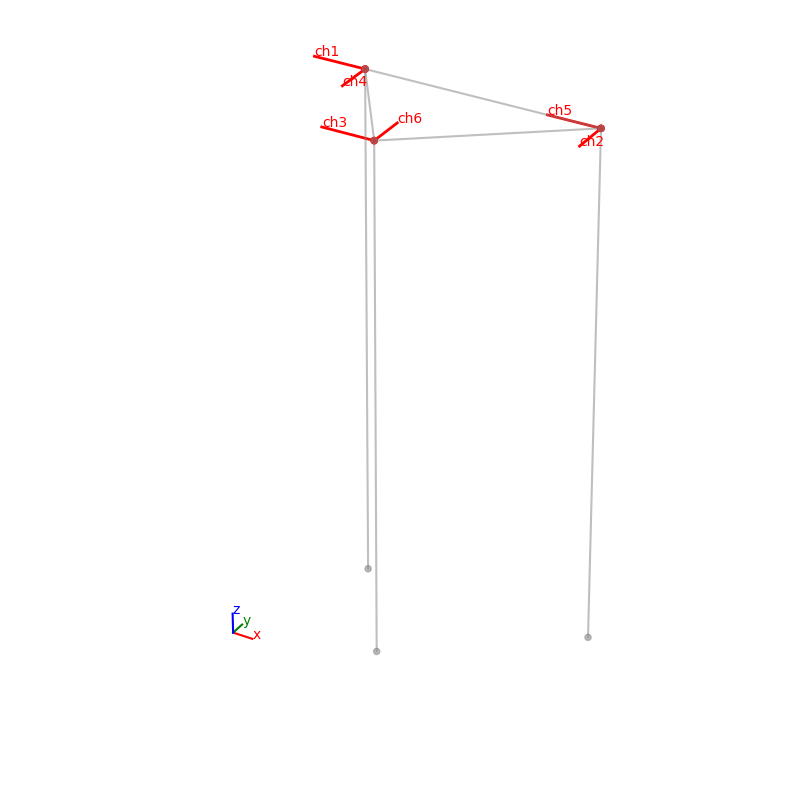
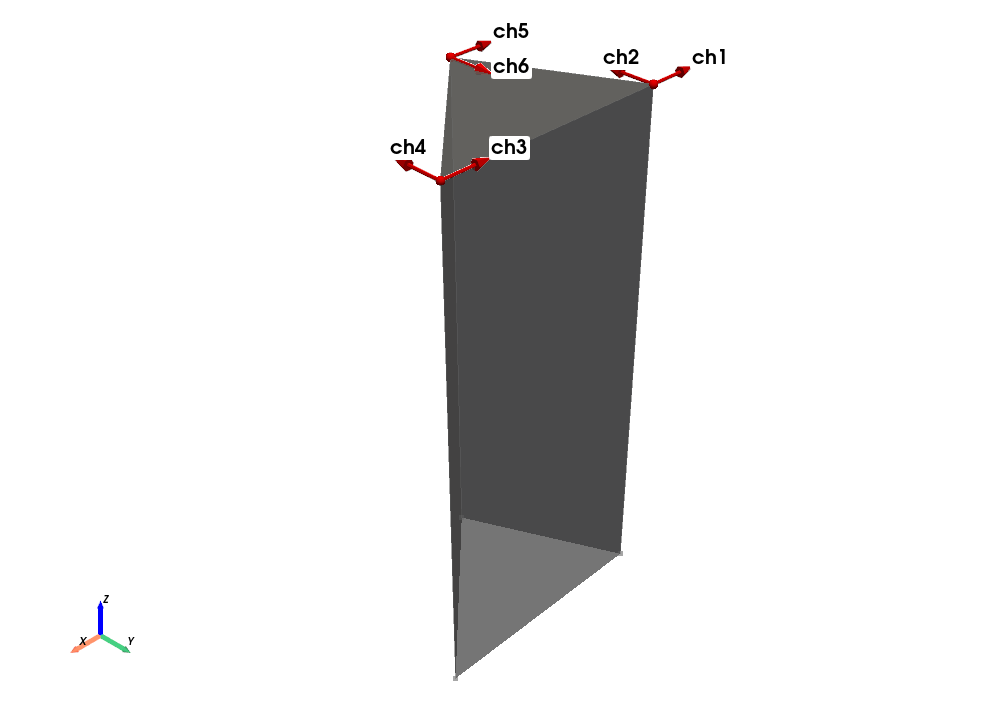
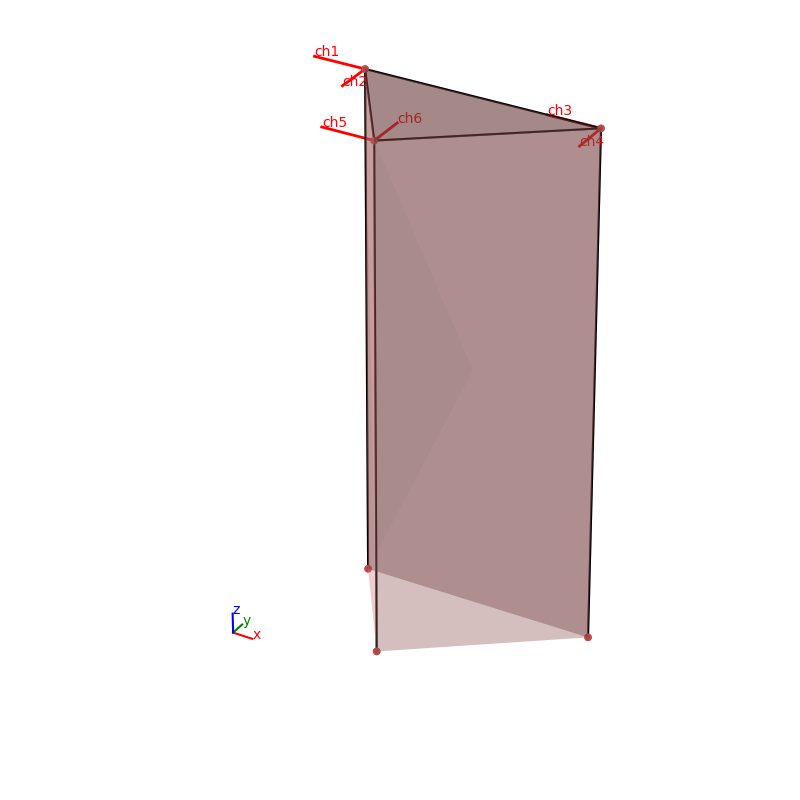
We can plot all the time histories of the channels calling the
plot_data() method
# Plot the Time Histories
fig, ax = Pali_ss.plot_data()
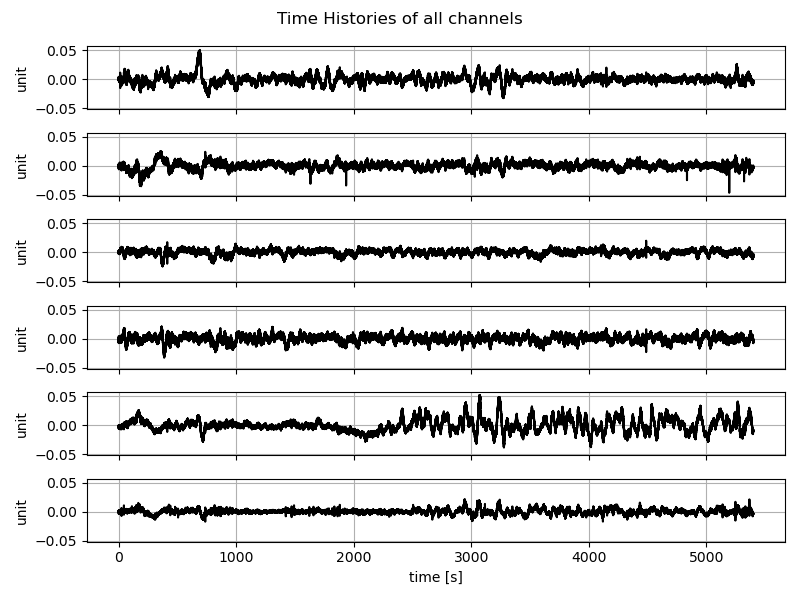
We can also get more info regarding the quality of the data for each
channel calling the plot_ch_info() method
# Plot TH, PSD and KDE of the (selected) channels
fig, ax = Pali_ss.plot_ch_info(ch_idx=[-1])
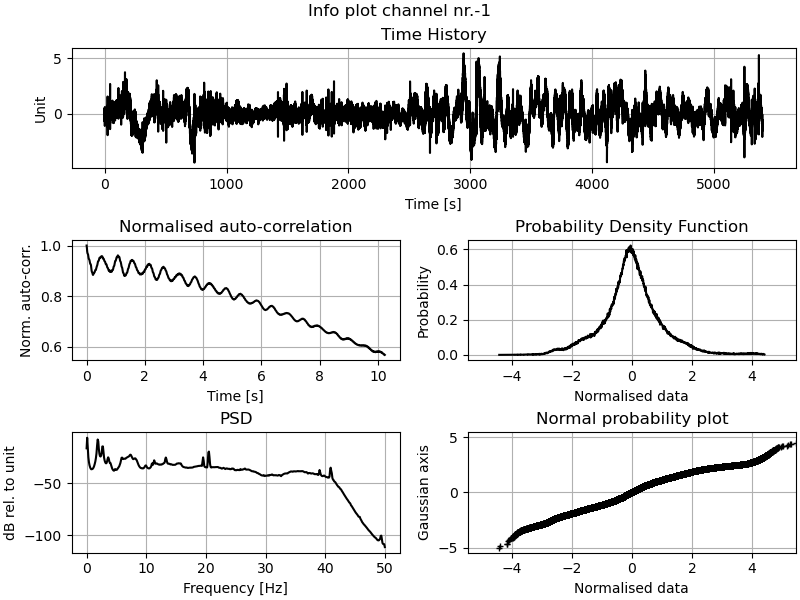
As we can see from the auto correlation there’s a low frequency component in the data.
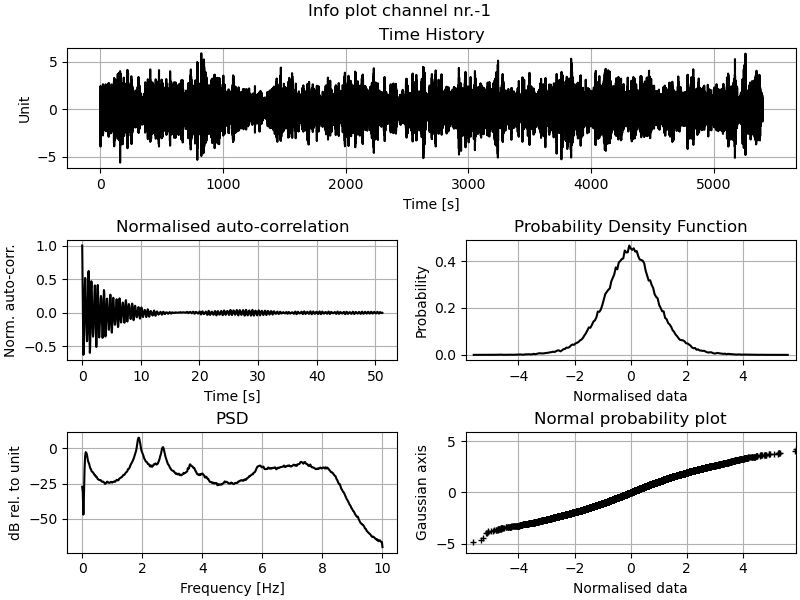
Other than the detrend_data() and decimate_data() methods there’s also a filter_data() method that can help us here.
# Detrend and decimate
#Pali_ss.detrend_data()
Pali_ss.filter_data(Wn=(0.1), order=8, btype="highpass")
Pali_ss.decimate_data(q=5)
_, _ = Pali_ss.plot_ch_info(ch_idx=[-1])
Now we can instantiate the algorithms that we want to run, e.g.
EFDD and SSIcov. The algorithms must then be added
to the setup class using the add_algorithms() method. Thereafter,
the algorithms can be executed either individually using the
run_by_name() method or collectively with run_all().
# Initialise the algorithms
fsdd = FSDD(name="FSDD", nxseg=1024, method_SD="cor")
ssicov = SSIcov(name="SSIcov", br=50, ordmax=50)
plscf = pLSCF(name="polymax",ordmax=30)

# Overwrite/update run parameters for an algorithm
fsdd.run_params = FSDD.RunParamCls(nxseg=2048, method_SD="per", pov=0.5)

# Add algorithms to the single setup class
Pali_ss.add_algorithms(ssicov, fsdd, plscf)

# Run all or run by name
Pali_ss.run_by_name("SSIcov")
Pali_ss.run_by_name("FSDD")
Pali_ss.run_by_name("polymax")
# Pali_ss.run_all()

# save dict of results
ssi_res = ssicov.result.model_dump()
fsdd_res = dict(fsdd.result)
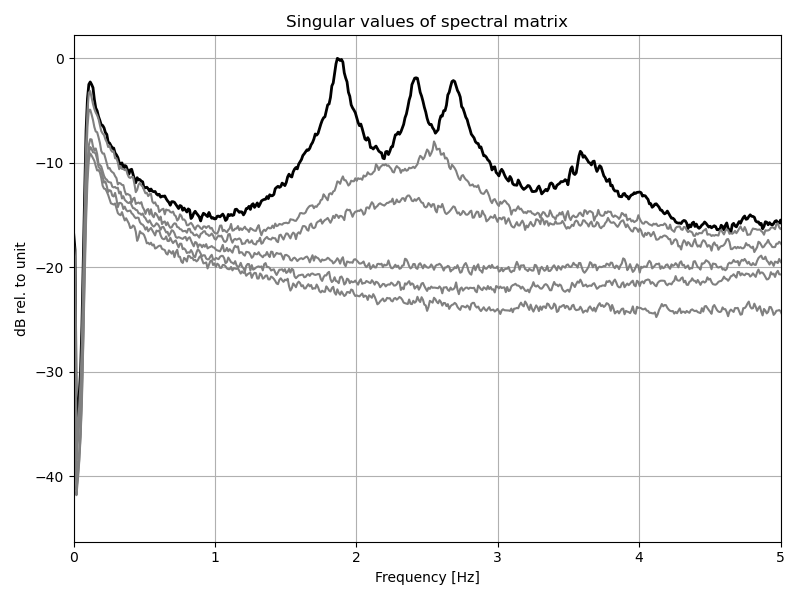
We can now plot some of the results:
# plot Singular values of PSD
fsdd.plot_CMIF(freqlim=(0,5))
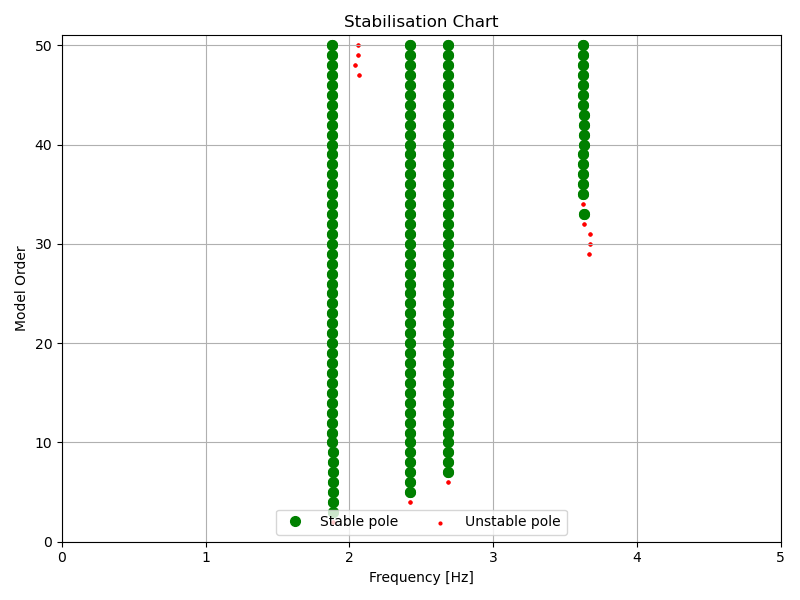
# plot Stabilisation chart for SSI
ssicov.plot_stab(freqlim=(0,5), hide_poles=False)
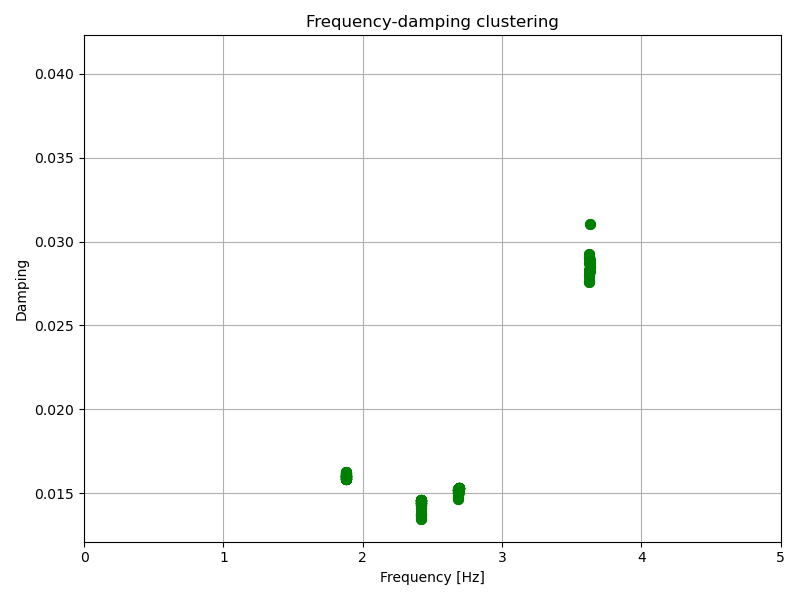
# plot frequecy-damping clusters for SSI
ssicov.plot_freqvsdamp(freqlim=(0,5))
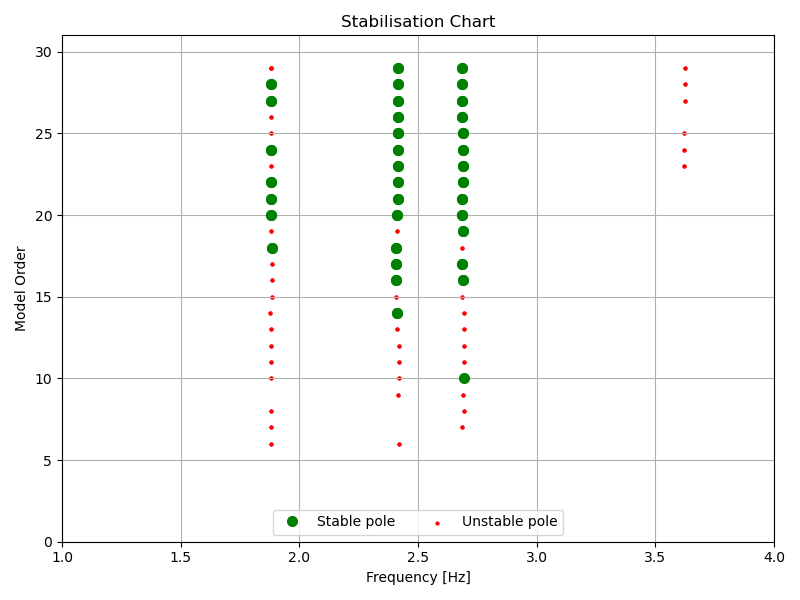
# plot Stabilisation chart for pLSCF
_, _ = plscf.plot_stab(freqlim=(1,4), hide_poles=False)
We are now ready to extract the modal properties of interest either
from the interactive plots using the mpe_from_plot() method or
using the mpe() method.
# Select modes to extract from plots
# Pali_ss.mpe_from_plot("SSIcov", freqlim=(0,5))

# or directly
Pali_ss.mpe("SSIcov", sel_freq=[1.88, 2.42, 2.68], order_in=40)

# update dict of results
ssi_res = dict(ssicov.result)
# Select modes to extract from plots
# Pali_ss.mpe_from_plot("FSDD", freqlim=(0,5), MAClim=0.95)

# or directly
Pali_ss.mpe("FSDD", sel_freq=[1.88, 2.42, 2.68], MAClim=0.95)

# update dict of results
fsdd_res = dict(fsdd.result)
We can compare the results from the two methods
ssicov.result.Fn

>>> array([1.88205042, 2.4211625 , 2.68851009])

fsdd.result.Fn

>>> array([1.8787832 , 2.42254302, 2.67381079])
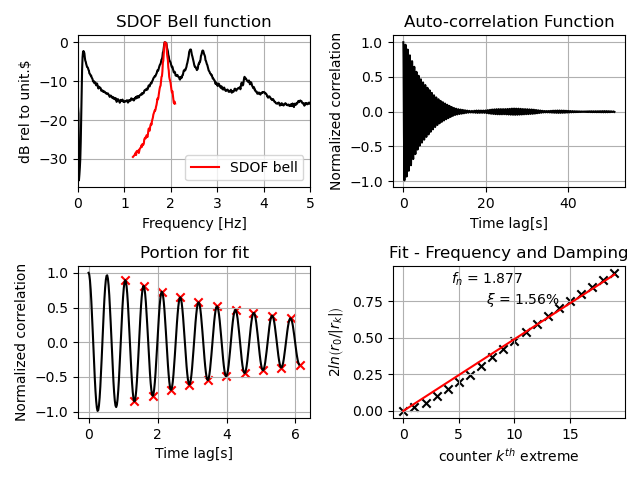
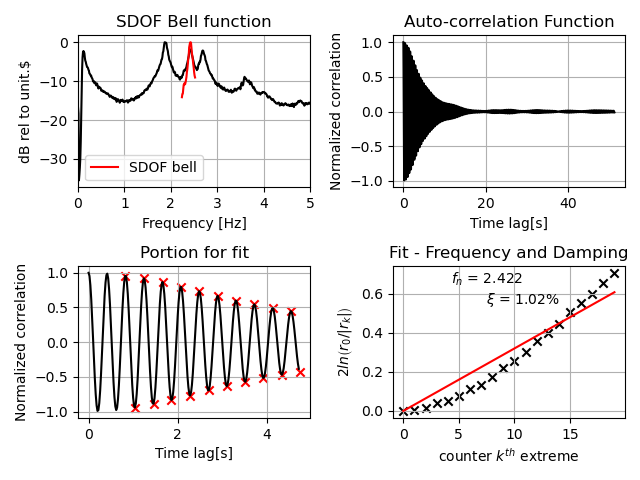
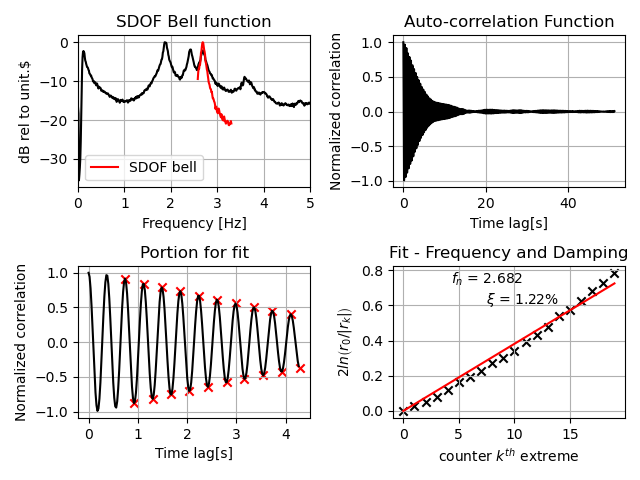
We can also plot some additional info regarding the estimates for the EFDD and FSDD algorithms
# plot additional info (goodness of fit) for EFDD or FSDD
Pali_ss[fsdd.name].plot_EFDDfit(freqlim=(0,5))
And finally we can plot and/or animate the mode shapes extracted from the analysis
# MODE SHAPES PLOT
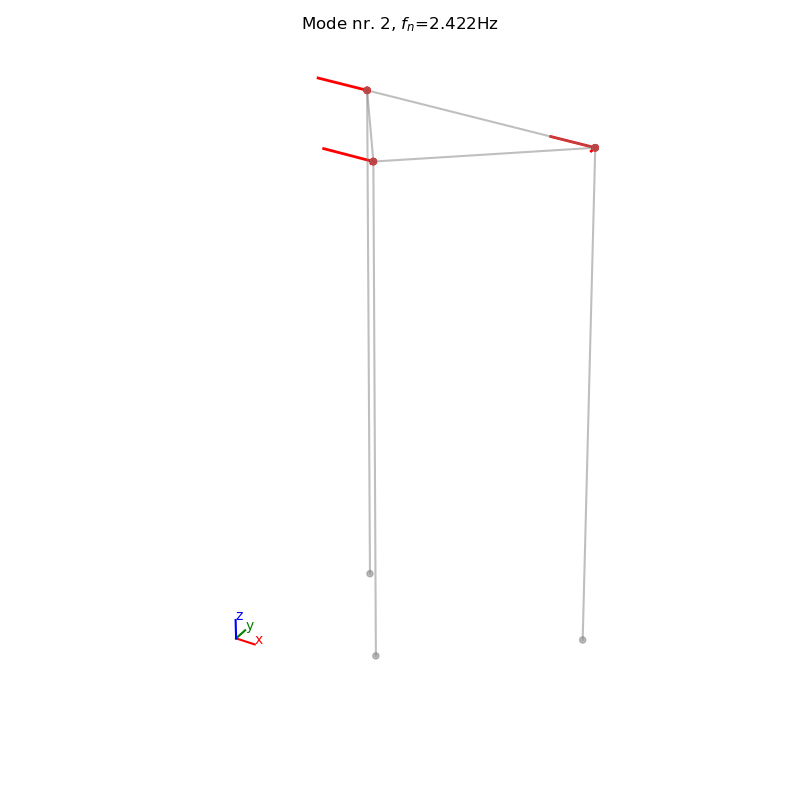
# Plot mode 2 (geometry 1)
Pali_ss.plot_mode_geo1(
    algo_res=fsdd.result, mode_nr=2, view="3D", scaleF=2)
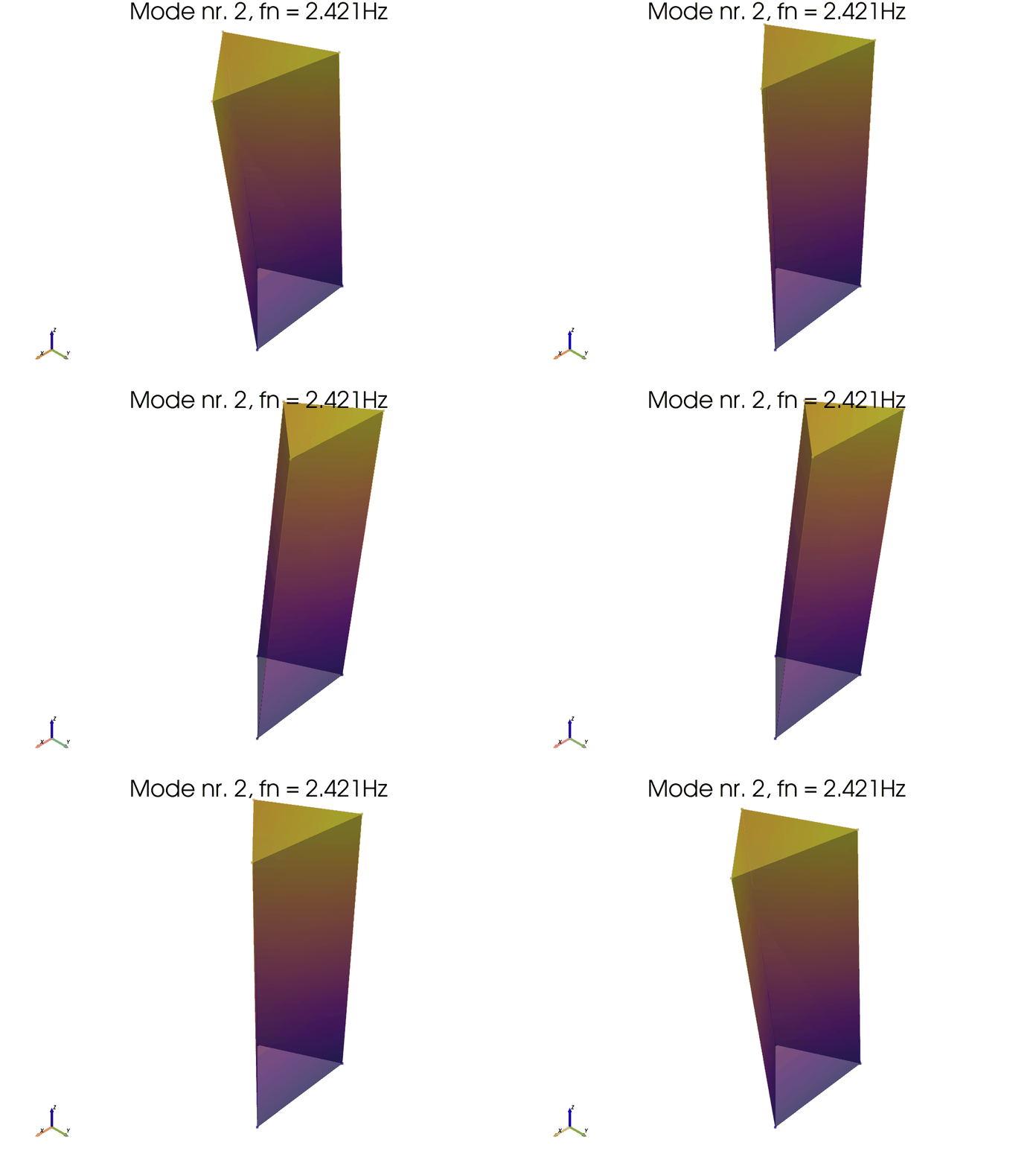
# Animate mode 1 (geometry 2)
Pali_ss.anim_mode_geo2(
    algo_res=ssicov.result, mode_nr=1, scaleF=3)
It is also possible to save and load the results to a pickled file.
from pyoma2.functions.gen import save_to_file, load_from_file

# Save setup
save_to_file(Pali_ss, "<Path to your file>/name.pkl")

# Load setup
pali2 = load_from_file("<Path to your file>/name.pkl"")

# plot from loded instance
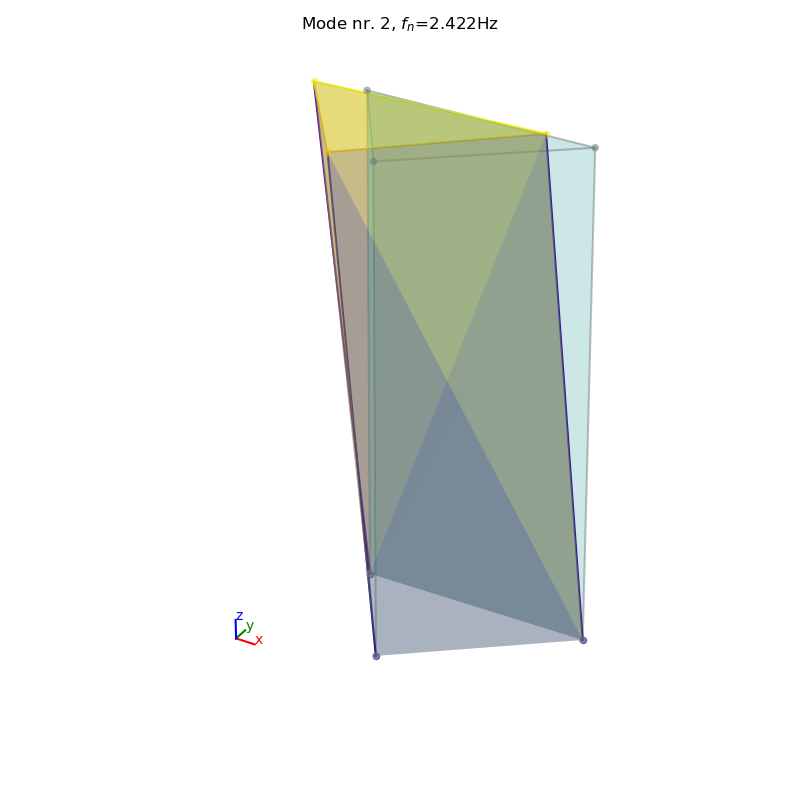
pali2.plot_mode_geo2_mpl(
    algo_res=fsdd.result, mode_nr=2, view="3D", scaleF=2)
Aloisio, A., Pasca, D., Tomasi, R., & Fragiacomo, M. (2020). Dynamic identification and model updating of an eight-storey CLT building. Engineering Structures, 213, 110593.